Proxenos Desktop GUI. Guided Setup for ChatGPT and Local Workspaces
In my previous article, I introduced Proxenos, a small application that connects ChatGPT to selected directories on a Linux machine. Its first interface was a terminal dashboard.
A terminal is sufficient for managing a service. However, it is not always the simplest way to configure a tunnel, register a directory and discover whether ChatGPT has actually connected.
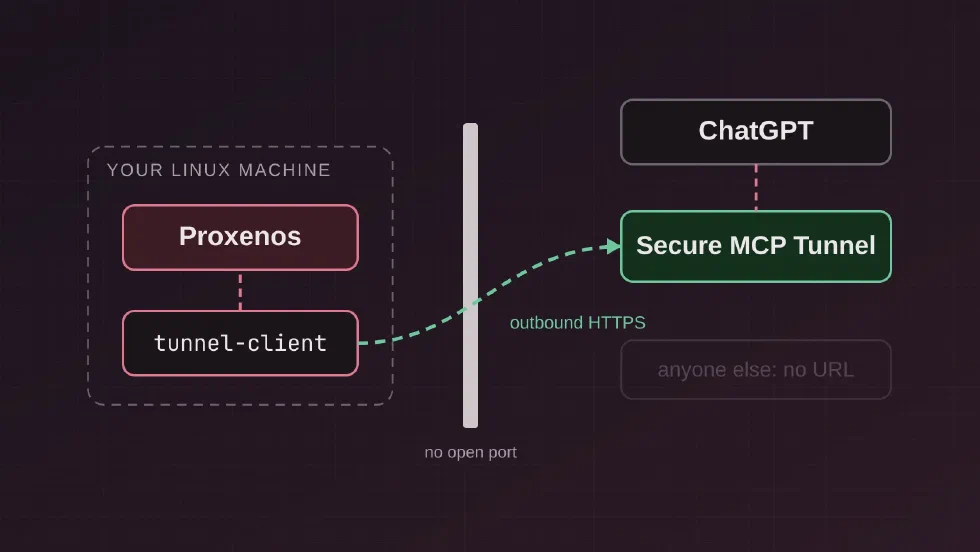
The latest Proxenos changes add a Compose Desktop interface and a guided setup wizard. The underlying Runtime and the Secure MCP Tunnel remain the same. Therefore, this is a different way to manage the same machine, not another server.
Installation
The desktop GUI is included in the linux-x64 release archive. This archive also carries a Java runtime, so there is no separate JDK installation for the packaged GUI.
After unpacking the archive, install the official tunnel-client and start the desktop application:
./bin/install-tunnel-client
./bin/gui
The first command downloads the pinned tunnel-client release and verifies its checksum. The GUI checks whether that executable is available; it does not install it for you.
You may also add Proxenos to your Linux application menu with ./bin/install-desktop-entry. This creates a launcher and icon, but not an automatic service at login.
The Setup Wizard
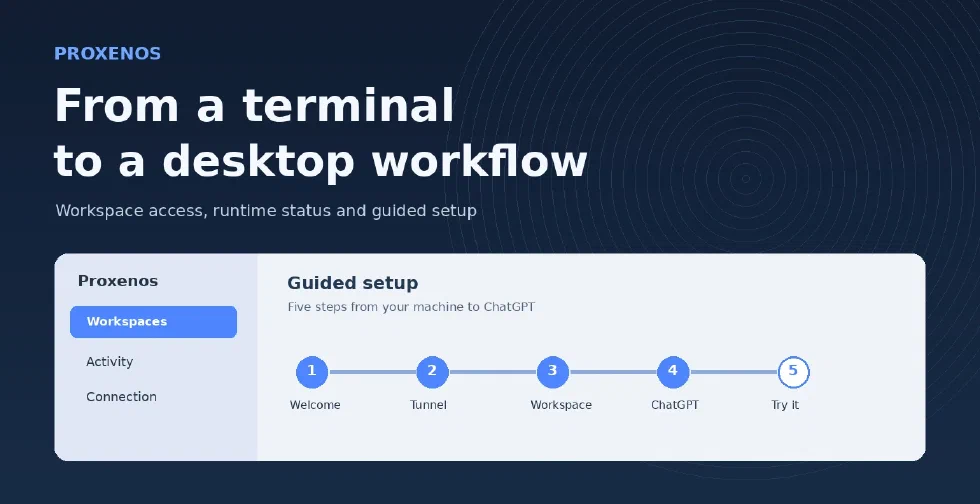
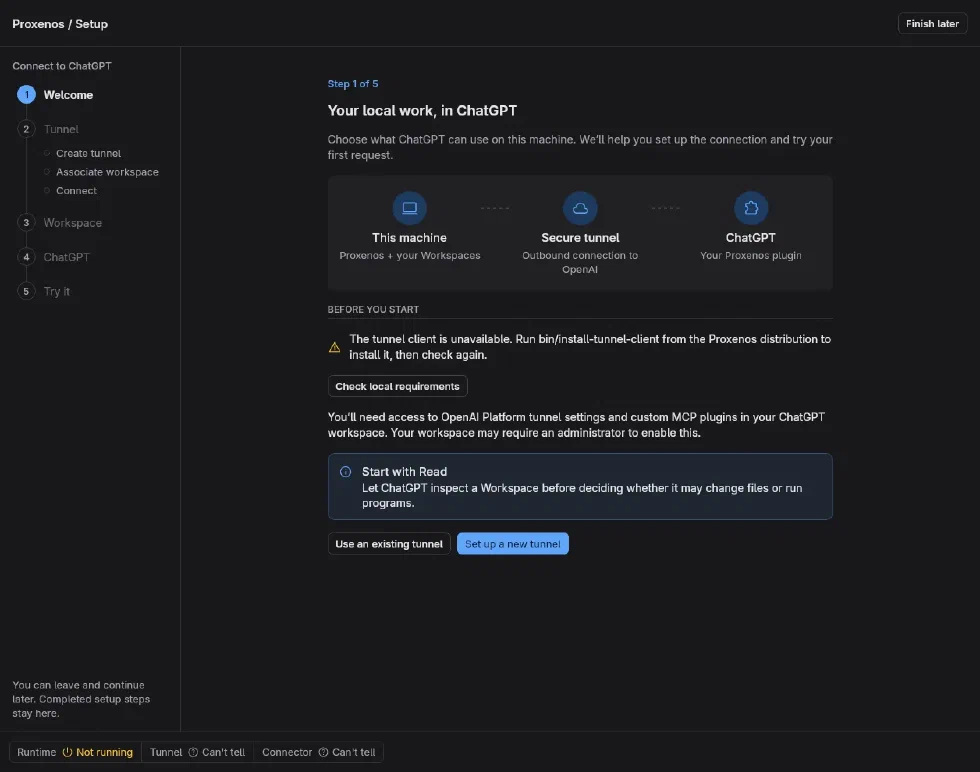
The initial setup used several separate steps in a terminal and the OpenAI dashboards. Now the desktop wizard puts these steps in one place, without pretending it can perform the Platform configuration itself.
It has five stages:
- Welcome checks the local requirements and asks whether you are creating a tunnel or reusing one.
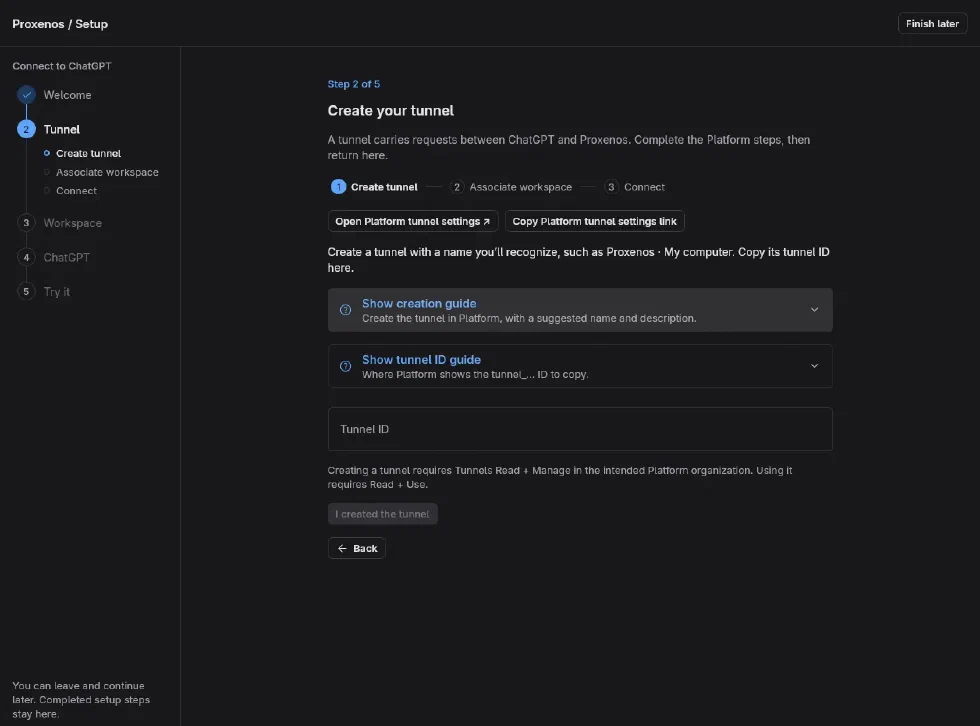
- Tunnel guides you through the OpenAI Platform, the ChatGPT workspace association, and a runtime API key. Save & connect stores the credentials and starts the Runtime.
- Workspace registers a directory with Read access, or selects an existing registration.
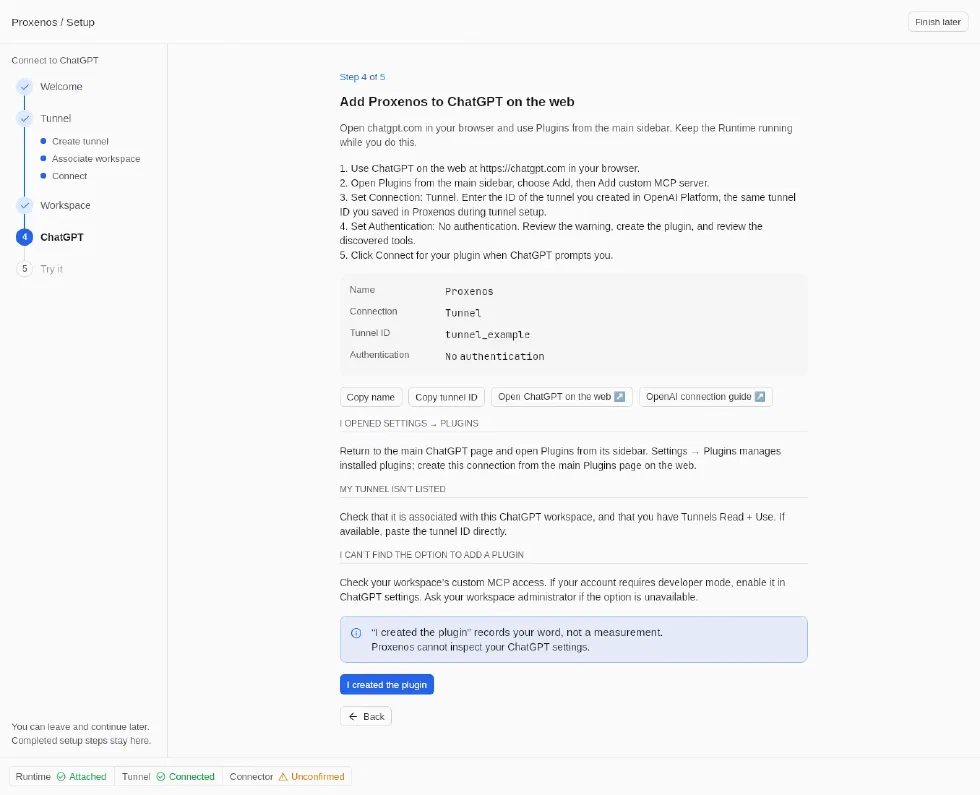
- ChatGPT explains how to create and connect the MCP plugin using the same tunnel ID.
- Try it waits for a real
list_directoryrequest from ChatGPT against the selected workspace’s root.
The Tunnel stage is not a single form with five unexplained fields. It includes illustrated, expandable guides for creating a tunnel, finding its ID, associating a ChatGPT workspace and obtaining a key.
For the plugin, use ChatGPT on the web. Open Plugins from its main sidebar, then Add → Add custom MCP server. Select Connection → Tunnel, enter the tunnel ID and choose No authentication.
The last choice is important. Proxenos does not implement OAuth for its MCP endpoint. Its tunnel connection uses the runtime key configured on the machine instead. The tunnel client sends that key to OpenAI for authentication; it is not a secret that remains exclusively on the computer.
Credentials are saved in the user’s Proxenos configuration with file permissions 0600. A previously saved runtime key is never displayed back in the wizard. To replace credentials while the Runtime is attached, you must stop it explicitly first.
Workspaces and Access Levels
A workspace is a registered directory with an access level. The directory name is useful for identifying the project in ChatGPT, but the access level determines what the model may do.
The GUI places the main controls under Workspaces. Choose a workspace, then open Access, Tools or Registration.
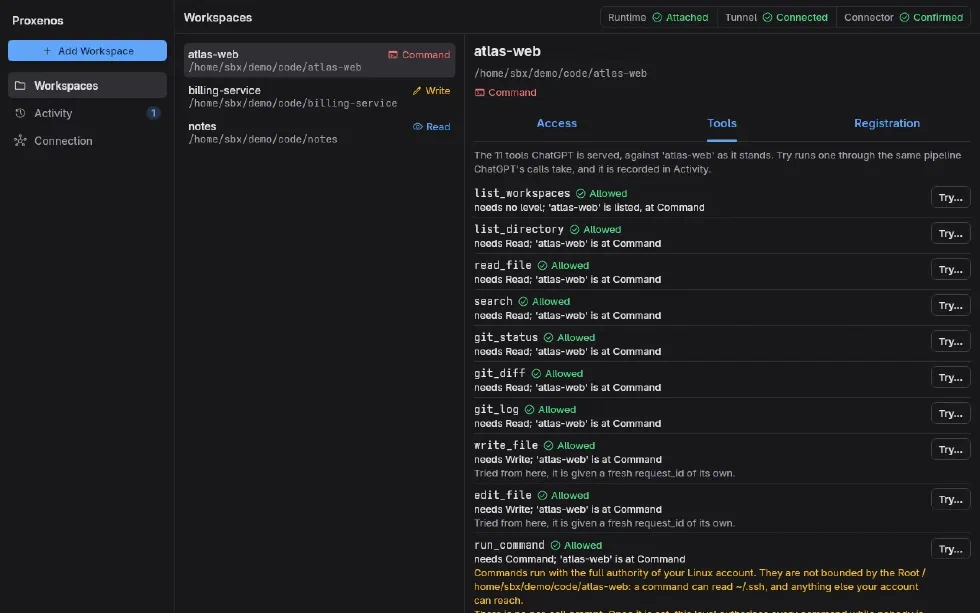
There are four access levels:
- None hides the workspace from discovery.
- Read allows file listing, reading, search and Git inspection.
- Write adds file creation and editing.
- Command adds shell commands and their results.
A particularly useful addition is the Tools tab. It displays the tools available for that workspace and lets you test one through Try…. The test travels through the same Runtime path as a request from ChatGPT.
Please note that Command is not a sandbox. The directory is a starting point, not a security boundary. A process can reach anything that your Linux account can reach. Although ChatGPT may request approval for a dangerous tool, the Proxenos Runtime does not ask you again before every command.
Activity
When ChatGPT calls a tool, you should be able to see what happened on the computer. The Activity page provides the operation name, workspace, outcome and details.
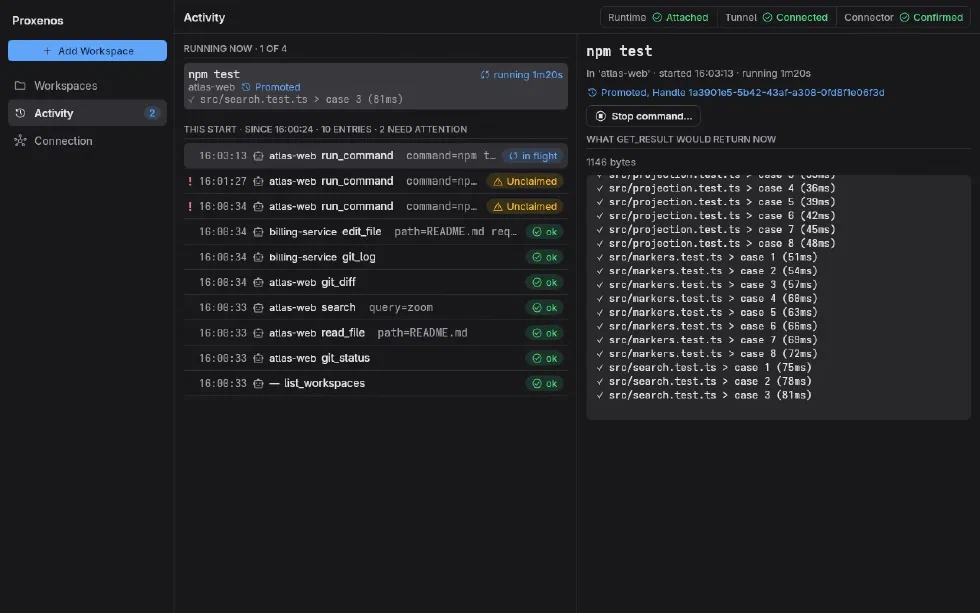
Commands that continue running appear under Running now. You may inspect their latest output or stop them from the desktop interface. This is helpful when run_command returns a handle and the result must be collected later with get_result.
The desktop view intentionally covers the current Runtime start. It is not a complete historical log of every previous session. Moreover, disconnecting a tunnel or lowering a permission does not cancel a command already running.
Connection and Runtime
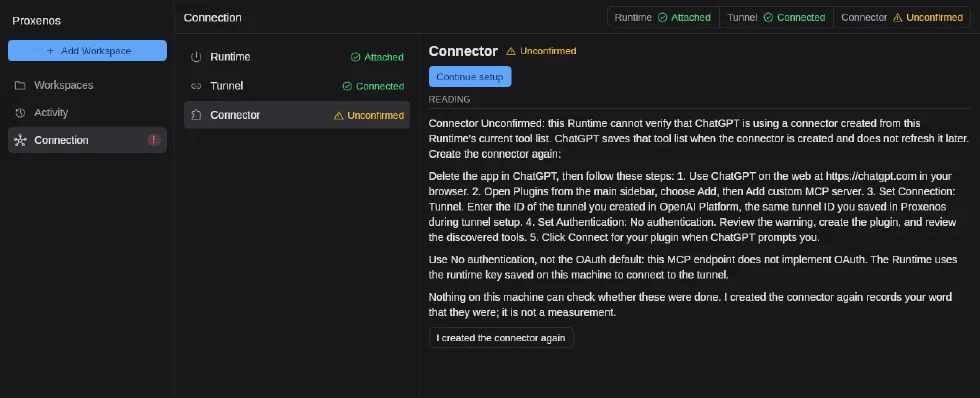
The Connection page separates three readings: Runtime, Tunnel and Connector. I find this separation more useful than a single green indicator.
A Runtime may be running while the tunnel is disconnected. The tunnel may be connected while the ChatGPT plugin still needs attention. A connector confirmation, by itself, is also not proof that ChatGPT executed a request.
Closing the GUI does not stop the Runtime. The terminal dashboard may attach to it as well, without replacing the process or resetting access levels.
There is no automatic startup after reboot. This is deliberate: a workspace at Command should not become available simply because the machine was restarted. From Connection → Runtime, you may stop it explicitly; doing so ends running operations.
The wizard has a Finish later action. Continue setup returns you to the remaining stages from the Connection page. Completed setup progress survives closing the window, while a key entered but not saved does not.
Verifying the First Request
A green tunnel reading and a plugin confirmation are helpful, but neither demonstrates that ChatGPT can read a workspace. This distinction matters.
For example, ask ChatGPT:
Use Proxenos to list my available workspaces. Then use
list_directoryto list the root ofmy-project.
The last wizard stage waits for a successful ChatGPT-origin root listing that occurs after verification began, during the current Runtime start. A previous operation, a failed call, or a local Try… test does not satisfy it.
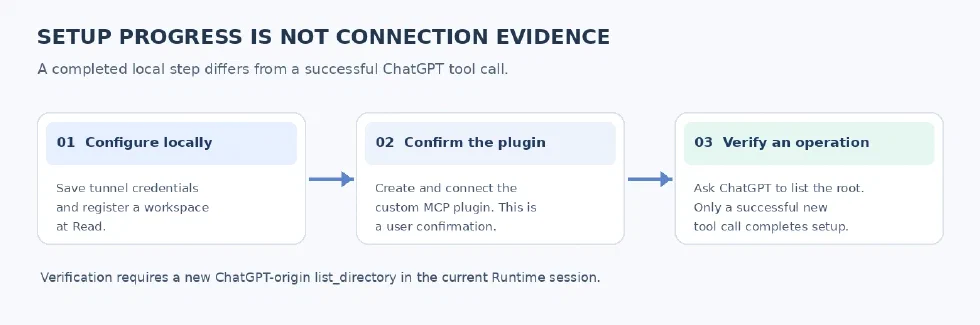
This is a small design decision, but it prevents the wizard from reporting success because somebody clicked a confirmation button. The application shows the observed operation and its time, rather than claiming to know which conversation made the request or promising that the connection remains available forever.
Limitations
The desktop application currently targets Linux x86_64 with X11 or XWayland. Native Wayland without XWayland is unsupported. The portable distribution still provides the terminal dashboard for other supported Linux environments.
A ChatGPT account with custom MCP access and access to OpenAI Platform tunnels is required. Availability depends on your account and workspace permissions.
Finally, a GUI cannot make Command safer than the underlying Linux account. If you want to let ChatGPT inspect a repository, I recommend starting with Read and increasing permissions only for the operation you need.
Conclusion
Overall, I find the desktop interface a more straightforward way to use Proxenos on a Linux workstation, particularly for the initial ChatGPT setup. The separate Runtime remains useful on a headless server, where the terminal dashboard is still sufficient.
The source code, releases and installation guide are available on GitHub. For the details of the network path and why the tunnel needs no public port, please refer to the first Proxenos article.